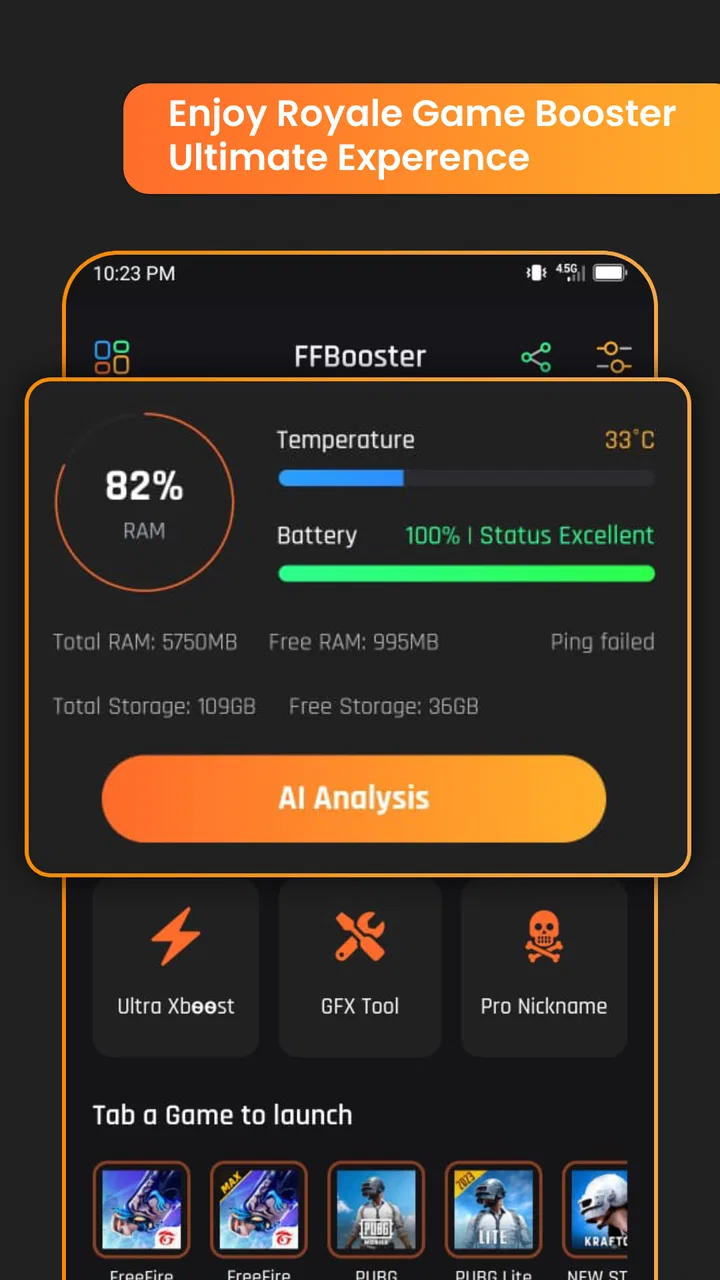
Game booster GFX Fire Fix
- 4.6
- Rating
- 500.00K
- Installs
- Free
- Price

 Analysis by App-foxy
I approached Game booster GFX Fire Fix as a practical gaming utility rather than a magic performance button. It sits in the Libraries & Demo section, is free to use, and comes from Royal Games Boosters. Its purpose is straightforward: give Android players a place to work with game-boosting and graphics-related adjustments that may help reduce interruptions and make play feel more comfortable. In my experience, that makes it most interesting for people who like to prepare their phone before launching a demanding game instead of changing settings randomly in the middle of a match.
The app has attracted a 4.6 average from around 5.4K ratings and has passed 500K installs, so it is clearly not an obscure experiment. It is rated Everyone, works with Android 7.0 and later, and the current version is 25.09.27. Those details matter because this is the kind of tool people often install on older phones, where a small change in graphics load or background activity can feel more noticeable than it would on a recent flagship.
How I built a dependable starting routine
My first recommendation is not to open the booster and immediately choose the most aggressive-looking option. A better baseline is to launch the game normally, play the same type of session you usually play, and notice what actually bothers you. Is the problem a brief pause when a busy scene loads, a phone that becomes hot, distracting notifications, or a frame rate that feels uneven? Those are different problems, and a graphics utility cannot solve all of them equally well.
You May Also Like

 Blood Strike: 2.5 Anniversary
Blood Strike’s Loadouts Turn Every Drop Into a Tactical Gamble
A close look at Blood Strike’s custom loadouts: how fast access to signature weapons reshapes its battle royale rhythm, rewards preparation, and narrows the gap between fights.

 Pandora - Music & Podcasts
Pandora’s Music Is Easy to Start, but Harder to Recover
Pandora’s strength is its low-effort path from a seed to a station. Its weak spot is how much confidence it asks you to place in connection, setup, and quiet recovery.

 8 Ball Pool
 Is Built on Rivalries, Rematches, and Routine
A close look at the rivalries, rematches, shared routines, and unanswered safety questions that turn a quick pool match into a persistent mobile community.

 Samsung Music
’s Quiet Strength Is Playing What You Already Own
Its reach comes less from spectacle than from dependable access to a personal library. That simplicity is both the app’s strongest retention engine and its ceiling.

 AccuWeather: Weather Radar
AccuWeather Review: A Quick, Clear Forecast for Everyday Decisions
For everyday plans, the best forecast is the one you can understand quickly. AccuWeather makes rain timing, radar, and local conditions easy to act on, with a few trade-offs.

 Hill Climb Racing
Why Hill Climb Racing Still Turns Crashes Into One More Run
A tiny car, a bumpy hill and one more upgrade: Hill Climb Racing keeps resurfacing because its simple chaos makes every near-miss feel personal.
More From Our News Desk



For a fair comparison, I used the same game mode and similar play conditions before and after making adjustments. That habit is more useful than relying on a single impressive session. Mobile performance changes with battery level, heat, network quality, and other apps running in the background. If you change several things at once, you may not know which adjustment helped or whether the improvement was simply a quieter moment in the game.
The most useful role for this app is preparation. I would open it before a long gaming session, review the available graphics choices, apply a conservative setup, and then start the game. If the game feels stable, I would leave the configuration alone rather than chasing tiny differences. Experienced users often get better results from a repeatable routine than from constantly switching between profiles or settings.
A realistic everyday example is a commute or a break between tasks. Before starting a multiplayer match, I would close unrelated apps, check that the phone is not already hot, open the booster, and use the same graphics setup that worked previously. This takes less time than experimenting during a match and reduces the chance of blaming the app for a problem caused by an overheated device or a weak connection.
What to check before changing graphics
Start with the phone itself. If storage is nearly full, the battery is low, or the handset is warm from charging, a booster has less room to make the experience feel consistent. I also avoid testing while the phone is connected to a charger if heat is already an issue. A cooler device gives you a clearer idea of whether the graphics adjustment is helping.
Next, pay attention to the game’s own graphics menu. Many games already provide resolution, frame-rate, shadow, texture, and effect controls. When those controls are available, I prefer using the game’s official options first because they are designed around that particular title. Game booster GFX Fire Fix is more useful as an additional preparation layer when the built-in choices are limited or when you want a quicker routine across sessions.
Notifications are another source of interruption that graphics changes cannot fully address. Before a serious match, I use the phone’s normal notification controls and avoid leaving video, social, or browser apps active in the background. This is an important trade-off: the booster may improve the gaming setup, but it does not replace basic device housekeeping.
I also recommend writing down the original settings mentally or with a quick note before experimenting. If a game becomes blurry, controls feel delayed, or the phone heats up faster, returning to the previous arrangement is much easier when you remember what you changed. This simple rollback habit is one of the most valuable practices for anyone using graphics tools.
Finding the useful balance between clarity and smoothness
The central decision is whether you value visual detail or steadier play more. Higher graphics quality can make environments look better, but it also asks more from the processor and graphics hardware. Lowering visual demand may produce a less impressive image while making movement feel more consistent. For competitive games, I usually prefer consistency. For a slower single-player experience, I may accept more detail if the phone remains comfortable.
Do not judge a setting only by the first menu or loading screen. Busy combat, crowded areas, weather effects, and rapid camera movement are better tests because they expose instability. I would play through one demanding section, then check whether the phone is becoming hot and whether the image remains readable. If the result is technically smooth but visually unpleasant, that is not a successful setup for me.
There is also a practical battery trade-off. A setting that pushes the device harder may feel good for a short session but become less attractive over a long one. When I plan to play for an hour, I choose a setup that keeps the phone comfortable rather than one that gives the highest possible visual output. Reducing interruptions is valuable only if the device remains usable afterward.
For older Android phones, modest adjustments can be more sensible than trying to imitate a high-end device. The minimum operating-system requirement is Android 7.0, which makes the app accessible to a broad range of phones, but compatibility does not mean every device will respond in the same way. Hardware differences still matter. A setting that helps one model may do little on another, so I treat the app as a tuning aid, not a universal performance guarantee.
Shortcuts, repeatable patterns, and realistic limits
I find the most useful shortcut is to keep a brief note of the setup that feels right for each game, then change only one setting when a session starts behaving differently. That makes it easier to tell a real improvement from a temporary change in heat, battery, or background activity. The routine still has limits, though: repeatable settings can save time, but they cannot make every game or phone respond alike.
How I make the routine faster
Once I find a comfortable arrangement, I stop treating every session as a new test. I use a simple pattern: prepare the phone, open the booster, apply the known setup, launch the game, and leave it alone unless a clear problem appears. This reduces menu time and keeps the focus on playing. The app becomes more valuable when it supports that habit instead of encouraging constant tweaking.
For different types of games, I would keep separate mental presets even if I do not create formal profiles. A fast competitive game may benefit from prioritizing responsiveness and stable frames, while a relaxed exploration game may justify better image quality. The important point is to change only the parts that serve the game. Applying the same aggressive configuration everywhere can waste battery or make slower games look worse without providing a meaningful benefit.
Another useful shortcut is to test after a phone restart or after closing heavy background apps. If the booster seems to help only under those conditions, the real lesson may be that background load is the bigger issue. That does not make the app useless; it tells me to combine it with a cleaner starting state. Good results often come from the combination of a sensible graphics level and fewer competing tasks.
I would also avoid changing settings immediately after a network problem. A poor connection can look like performance trouble because characters may freeze, actions may arrive late, or the game may disconnect. Graphics adjustments cannot repair unstable internet service. Separating network symptoms from rendering symptoms prevents a lot of pointless experimentation.
Where the app is genuinely useful
I think this app makes the most sense for Android users who enjoy trying different graphics configurations, play on mid-range or older hardware, or want a dedicated place to prepare before gaming. It can also suit someone who finds the phone’s normal settings scattered across several menus and prefers a more focused gaming utility.
Its free price lowers the barrier to trying it, which is helpful when you are unsure whether a booster fits your routine. I would still approach it with realistic expectations. The app may help reduce interruptions and improve the feel of a session, but it cannot add physical cooling, upgrade the phone’s chipset, strengthen a mobile signal, or guarantee a fixed frame rate in every title.
The Everyone content rating makes it approachable for a wide audience, including families choosing a simple utility for a compatible Android device. Even so, younger users should still understand that changing graphics settings can affect battery life and heat. A parent may prefer to establish a conservative setup rather than encourage maximum performance at all times.
What it cannot replace
If your main problem is a weak internet connection, a game booster is not the right first purchase or download. Improving the network environment, moving closer to a reliable router, or using a more stable connection is more relevant. Likewise, if the phone is overheating because of a damaged battery or a case that traps heat, graphics adjustments are only a partial response.
Players who want deep device-level automation may find the app less suitable than a more advanced tool built specifically for their phone manufacturer. On the other hand, those alternatives can be more complicated and may expose settings that are easy to misuse. I prefer this app for straightforward preparation, not for users who expect full system monitoring, detailed benchmarking, or a complete replacement for the game’s own options.
The comparison with ordinary alternatives is fairly clear. Using only each game’s graphics menu is safer and often enough when the game already exposes good controls. Using the phone’s built-in gaming mode may be more convenient if it manages notifications and performance in one place. Game booster GFX Fire Fix is appealing when you want a dedicated graphics-focused workflow, especially on a device where the manufacturer’s gaming tools are basic or absent.
Advanced experimentation without losing control
For experienced users, the best approach is controlled experimentation. Change one setting, play the same demanding section, and decide whether the difference is meaningful. If the image becomes too soft or the phone becomes noticeably warmer, undo that change. This method takes longer at first but prevents a confusing combination of adjustments that cannot be diagnosed later.
I would also separate short-session and long-session setups. A brief test may tolerate higher visual demand, while an extended session benefits from lower heat and steadier battery use. Keeping those two goals distinct is a non-obvious advantage of having a repeatable workflow: you do not need to force one configuration to suit every situation.
Another trade-off is visibility. Lowering some visual effects may improve responsiveness but remove details that help you read a scene. In a competitive game, reduced decoration can be useful, yet excessive reduction may make opponents, paths, or important objects harder to distinguish. The right setting is not the lowest one; it is the lowest level that preserves the information you need to play well.
Finally, remember that an update to the game can change how a previous setup feels. If performance suddenly changes after a game update, test the baseline again instead of assuming the booster stopped working. Repeating the same workflow helps identify whether the issue comes from the game, the phone, heat, or the selected graphics arrangement.
My verdict after using it as a routine tool
Game booster GFX Fire Fix is best understood as a practical graphics-preparation app, not a guaranteed speed upgrade. I like it for the way it encourages a more organized approach: identify the real problem, adjust carefully, test under similar conditions, and keep the configuration that feels comfortable. That is more valuable than simply selecting the most extreme option and hoping for the best.
I would recommend it to Android players who want a free utility for experimenting with graphics and reducing distractions around a gaming session. It is especially reasonable for owners of older or mid-range phones who understand that stability, heat, battery life, and image quality must be balanced. The broad Android compatibility and accessible rating make it easy to try, while its 4.6 average suggests that many users find the general idea worthwhile.
I would skip it if you expect it to repair network lag, transform weak hardware into high-end hardware, or provide detailed professional diagnostics. In those cases, the game’s native settings, the phone’s built-in gaming tools, or a hardware and network check may be more appropriate. I would also avoid chasing tiny improvements that cannot be felt during real play.
My final advice is to use it with restraint. Establish a baseline, make one change at a time, test during the part of the game that normally causes trouble, and keep a comfortable setup for longer sessions. Used that way, Game booster GFX Fire Fix earns its place as a focused helper rather than an overpromising shortcut. For me, its real strength is not a dramatic transformation; it is making graphics adjustments easier to repeat and easier to understand.
FAQs for Game booster GFX Fire Fix
01What is Game Booster GFX Fire Fix and how does it enhance gaming performance?
Game Booster GFX Fire Fix is an app designed to optimize your device's performance specifically for gaming. It achieves this by tweaking system settings, freeing up RAM, and adjusting graphics settings to ensure smoother gameplay. This can result in reduced lag, faster loading times, and an overall improved gaming experience.
02Does Game Booster GFX Fire Fix support all games and devices?
While Game Booster GFX Fire Fix supports a wide range of games and devices, compatibility can vary. It is primarily designed for Android devices and works best with popular games that have intensive graphics. It's advisable to check the app's compatibility with your specific device and games before downloading.
03Is Game Booster GFX Fire Fix safe to use, and does it require root access?
Game Booster GFX Fire Fix is generally safe to use and does not require root access for most of its features. However, users should download the app from a trusted source, such as the Google Play Store, to avoid any security risks. Always ensure your device’s security settings are enabled when installing third-party apps.
04Can Game Booster GFX Fire Fix improve battery life while gaming?
While Game Booster GFX Fire Fix aims to enhance gaming performance, it does not directly improve battery life. However, by optimizing the device's performance, it can potentially reduce the CPU workload, which may lead to slightly better battery management. For significant battery improvements, consider additional battery-saving measures.
05Are there any costs associated with using Game Booster GFX Fire Fix?
Game Booster GFX Fire Fix is available for free with basic features. However, there may be in-app purchases or a premium version that offers additional functionalities, such as advanced graphics settings or ad-free usage. Users should review the pricing details on the app store to decide if the premium features are worth the investment.
Pros
- Enhances gaming performance noticeably.
- User-friendly interface and easy setup.
- Customizable graphics settings.
- Supports a wide range of games.
- Reduces lag effectively.
Cons
- May not work on all devices.
- Some features require in-app purchases.
- Occasional app crashes reported.
- Can drain battery quickly.
- Requires frequent updates.

Game booster GFX Fire Fix
Gallery